 Dale Shelabarger
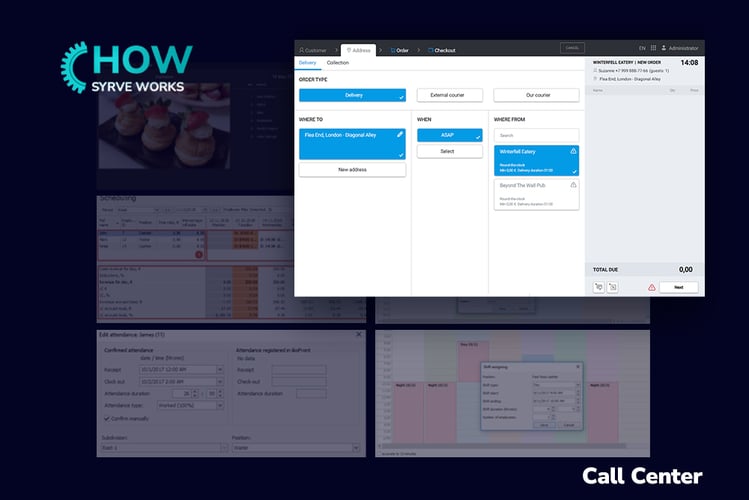
Number ten in our How Syrve Works series has arrived with external order processing once again in our crosshairs. Previous topics in this area include order injection and delivery management, both of which can dramatically streamline order processing and fulfilment. This time out, our focus is on Syrve Call Center - another impactful system feature that centralises the management of online and phone orders. Before we start, the basics.
What is a Restaurant Call Centre?
A restaurant call centre is a centralised system for handling phone and multi-channel orders. Typically outsourced to a dedicated team, it’s often integrated with a POS system from which orders are routed directly to the kitchen. When implemented properly, the impact on order management, front-of-house organisation and delivery speed can be transformative.
Why are Restaurant Call Centres Important?
Despite the growth of online ordering, phone orders remain a critical channel for many restaurants with a sizeable proportion of customers still preferring to place their orders by phone. These orders often arrive at the busiest times and tend to be more complex, placing additional pressure on front-of-house teams - these pressures tend to mount when phone and online orders are handled alongside in-house service.
A restaurant call centre addresses this problem by centralising multiple order channels into a single workflow. Orders are captured once, customer and delivery details can be reused, and order information passed cleanly to the kitchen. This reduces manual work, improves accuracy, and prevents phone orders from disrupting in-house service during busy periods.
Syrve App Call Center
Syrve App Call Center is a fully-integrated order management system that’s suitable for both individual venues and multi-site restaurant chains. Available in Syrve App, it centralises, monitors and routes orders intelligently, thereby freeing up in-house staff to focus on dine-in guests.
How it Works in Practice
Each order flows directly into the POS system and can be edited in real time with the use of live APIs – these allow Call Center to exchange live data with the POS, including orders, menus, and stock levels. In practice, this ensures that all external orders are handled using the same data and the same rules as in-house orders. This is how it works in a typical scenario:
Step 1 - A Call Comes In
A customer phones in an order during a busy period. The call is then answered by an agent using Call Center through the Syrve App.
Step 2 - Customer Details are Identified
The call is identified by phone number. For existing customers, address and loyalty data is pulled up. If new, the agent creates a new customer record.
Step 3 - Delivery/Collection Details are Set
The operator then confirms delivery or collection, delivery time or pickup location. Store availability and delivery zones are applied automatically.
Step 4 - Order is Built Using Live POS Data
The operator selects items from a live menu with modifiers, stock availability and prices applied in real time. Previous orders can also be retrieved to speed up the process.
Step 5 - Payments and Discounts are Applied
Payment methods and any discounts or loyalty rewards are then applied after the order has been built by the agent.
Step 6 – Order is Confirmed and Processed
Once the order has been confirmed it follows the same POS workflow, appearing on the kitchen display screen for preparation and delivery.
Setup
Setting up Syrve Call Center is mainly about deciding how orders should be handled and which store settings should be applied. These are the steps:
Set a Default Store
This determines which stock lists, delivery areas and mapping rules are applied when new orders are created. Should a store become unavailable, the system will automatically suggest the closest alternative.
Set Reasons for Order Changes
This setting allows you to define reasons for removing or cancelling an order – this can then be selected by the operator during order processing when required.
Select the Menu
Here you can use checkboxes to control which menus are made available to operators and which prices should be applied.
.png?width=800&height=533&name=12.02.26_Incontent%201%20(1).png)
The Call Center Workspace
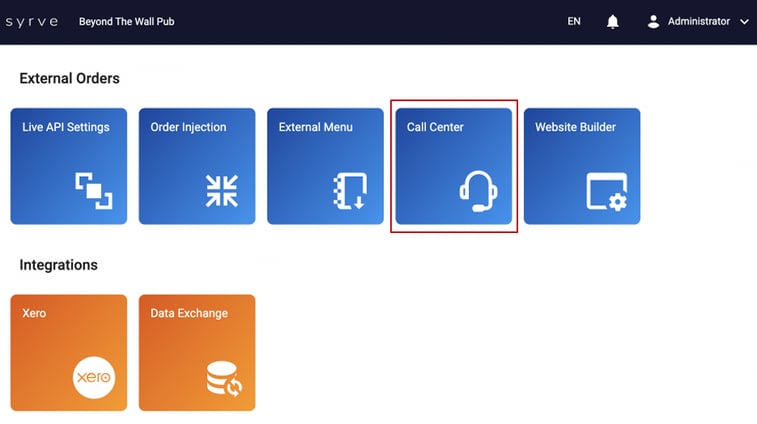
The Call Center is located in the External Orders section of the Syrve App dashboard. Its workspace is divided into two main areas: a scrollable list of stores on the left, and the order view, which takes up most of the screen.
Store List
The store list shows all venues where the Call Center is enabled. By default, all stores are displayed. However, selecting a specific store displays only the orders currently being handled by that location - these are grouped by POS group if multiple ones have been configured. Any issues will be flagged with a red exclamation mark. Hovering over it will display the number of problem orders currently active.
Order View
The order view dominates the Call Centre workspace and is where all active orders are located. They’re presented in a table containing the following columns and statuses.
-
Status - (confirmed, cooking pending, time to cook, in progress, ready, sent, delivered, closed, cancelled)
-
# - order number
-
Time - time the order was taken
-
Customer - customer name and telephone number
-
Order Type - delivery, pickup
-
Address - ‘collection’, delivery address
-
Driver - driver’s name for delivery orders
-
Amount - total order amount (highlighted green when paid)
To find a specific order, operators can use a search bar to enter part of a customer’s phone number, order number, order amount, or delivery address.
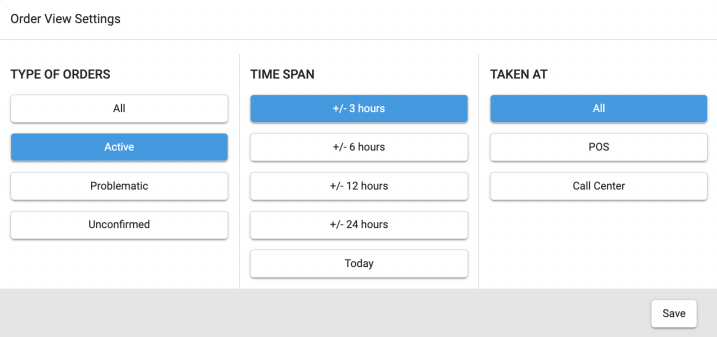
There’s also a filtering system for organising orders into more manageable groups, which includes the following criteria:
-
Type of Order (all, active, problematic, unconfirmed)
-
Delivery Time Span (+/- 3 hours, +/-6 hours, +/-12 hours, +/- 24 hours, today)
-
Order Creation Location (all, POS, call center)
How to Take an Order
To take an order, click the green New Order button at the top of the screen. You’ll then be presented with four staged tabs: Customer, Address, Order, Checkout.
Stage 1 - Customer Tab
The Customer tab lets the operator search for an existing delivery customer using their phone number, or create a new customer if needed. Customer details are stored for 90 days, after which they’ll need to be entered again.
If the customer data still exists, the operator clicks through to the address tab. If the system isn’t available to retrieve the information, an Add New Customer button will appear. Clicking on it will reveal the following fields: Name, Date of Birth, Comment, Marketing Channel, which need to be completed before progressing.
Stage 2 – Address Tab
Once the customer information has been added, the address tab is presented. From here, the order type (collection, delivery) is selected along with delivery time-frame (ASAP, custom) and Where From. Syrve will automatically populate this box with the store that’s a best match for the order in terms of proximity and availability.
Stage 3 – Order Tab
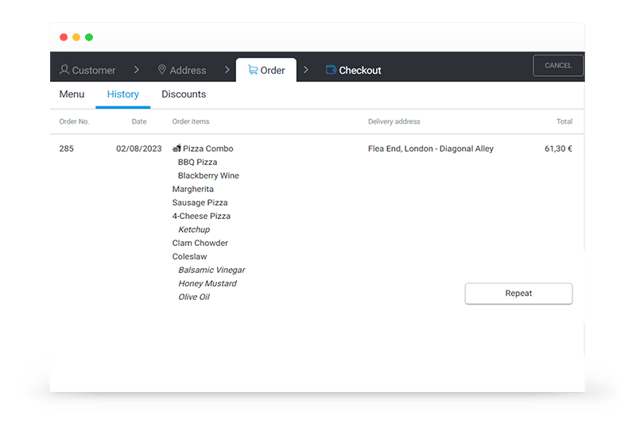
The Order tab comprises three sub-tabs: menu, history and discounts. The Menu tab displays the default menu set for the Call Center, with the option to switch menus if multiple ones are available. You can add items using search and category browsing, with the ability to select sizes, modifiers, and quantities. Item-level comments can also be applied where relevant. Items that are out of stock or unavailable are marked.
The History tab makes it easier to repeat a customer’s previous order, either in full or in part, depending on current availability. If items are still on sale, individual items and entire orders can be re-used.
The Discounts tab supports both manual and automatic discounts. For instance, loyalty discounts can be applied based on specific pre-configured rules.
Stage 4 – Checkout
At Checkout, you can select one or more payment methods including cash, card and loyalty rewards. Split payments are also supported when enabled while loyalty balances are also shown for registered customers.
Order Cancellations and Drafts
It’s possible to cancel any order before it reaches the delivered status by clicking the Cancel button to the right of the checkout tab.
To avoid this, operators can also create draft orders that are only visible in Call Center. They occupy their own tab next to the orders tab and provide a safe way to pause and complete an order without sending incomplete or incorrect information.
.png?width=1067&height=424&name=12.02.26_Incontent%203%20(1).png)
Order Edits
Operators can edit, reschedule, transfer or cancel orders depending on their current status. This includes updating delivery times, changing the assigned store or delivery address, adjusting order items and modifiers, and amending payment types where permitted.
In addition, unpaid orders can be transferred to another store if needed, while cancellation and deletion options ensure incorrect or unneeded orders don’t reach the kitchen. Together, these controls allow teams to respond quickly to changes without disrupting service.
Notifications
To ensure smoother, error-free workflows, notifications will appear on POS screens so that in-house staff can monitor order progress. Colour coding indicates whether an order is new, changed, cancelled or requires attention, helping teams respond quickly and avoid missed updates.
If an order is being edited simultaneously in the Call Center and in-store, the system prompts users to reopen it to ensure the latest changes are applied. Connection issues and problem orders are clearly flagged so they can be resolved without disrupting service.
Final Thoughts
Syrve Call Center brings structure and control to phone and online ordering by centralising external orders within the same workflows as in-house service. By using live POS data, consistent rules and real-time visibility across locations, it reduces pressure on front-of-house teams while improving accuracy, speed and oversight. For restaurants managing high order volumes or multiple channels, it turns what is often a disruptive channel into a reliable, scalable part of daily operations.


.jpg?width=390&height=240&name=1.05_header%20(1).jpg)