
 Dale Shelabarger
Processing supplier invoices and financial documents is a fact of life for restaurant operators. Unless accountancy is a particular passion, it’s not a task many people look forward to.
But of course, it’s a critical task that forms the foundation of sound inventory management. It allows you to maintain accurate records, understand the true cost of ingredients and monitor supplier price changes. The problem is that many operators still rely on manual processes.
Why is Manual Invoice Processing Problematic?
Manually processing invoices and financial documents is a laborious task that’s a drain on both time and patience. Yet many operators will spend an inordinate amount of time locked away in their office painstakingly entering line items from supplier invoices into their systems.
Given its repetitive nature, the process invariably leads to mistakes. Inaccurate stock level data is the result and in some cases a ‘price creep’ that can slowly and quietly erode profit margins.
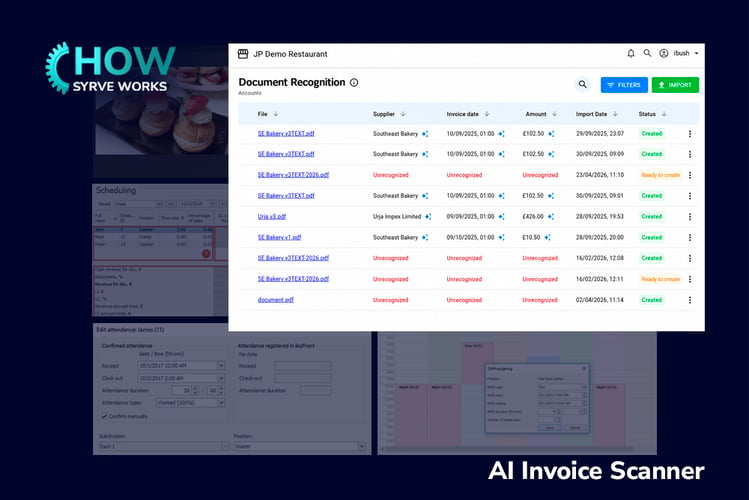
So, to simplify the entire process, Syrve has introduced the AI Invoice Scanner.
What is Syrve’s AI Document Scanner?
Syrve’s AI Scanner uses document recognition to extract key information from uploaded documents which it then converts into structured data. It’s able to recognise supplier information, products, units, quantities and prices from a variety of file types including:
-
PDFs
-
JPGs
-
JPEGs
-
PNGs
In addition to invoice processing, the scanner allows you to generate price lists and map supplier products between invoices and the Syrve platform.
Why Use Syrve’s AI Invoice Scanner?
Syrve’s AI Document Scanner eliminates the administrative burden of manual invoice entry by automatically extracting and processing supplier invoice data. This reduces administrative workload, helping operators maintain accurate inventory records, monitor supplier price changes and gain better visibility into food costs.
Who is it Best For?
Syrve's AI Document Scanner is valuable for restaurants that regularly processes supplier invoices. It’s particularly beneficial for businesses with a high volume of deliveries, multiple suppliers or multi-site operations - in other words any food service operation in which manual invoice entry can become a significant administrative burden.
Here's a rundown of why it can work for your operation.
Fast Processing - the process is fast and accurate. In addition to single page PDFS, the scanner is able to convert multi-page invoices into digital records.
Spot Price Increases - invoice prices are automatically compared against your existing
supplier price lists to protect your food costs.
No Extra Software - the invoice scanner is built into Syrve so no third-party plug-ins or integrations are necessary.
Oversight and Control - preview functionality allows you to review and amend details before posting, thereby providing you with complete oversight.
How the AI Document Scanner Works
In keeping with the rest of the Syrve platform, using the scanner is a straightforward process that can be completed in just a few steps. The feature supports three key processes: invoice scanning, supplier product mapping and automated price list creation.
Invoice Processing
Central to the AI Document Scanner is invoice processing. Once an invoice has been uploaded, Syrve extracts the relevant information and presents it for review. After verification, the data can be saved directly into the system, creating a digital version of the original document. Here’s a closer look at how this works.
 1. Upload the Document
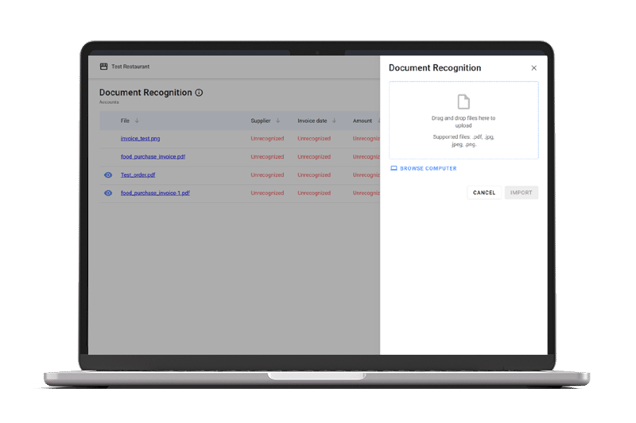
The scanner is located in Document Recognition under the Inventory section. To scan a document, select Import which opens Document Recognition.
You can then either drag and drop a document or select Browse Computer. Whichever method you choose, your selected file should appear with a Pending status. Once the system has scanned the document, the Pending status will change to Ready to Create. Essentially, this means that the system is ready to create a digital version of your document based on the scan.
 2. Reviewing the Information
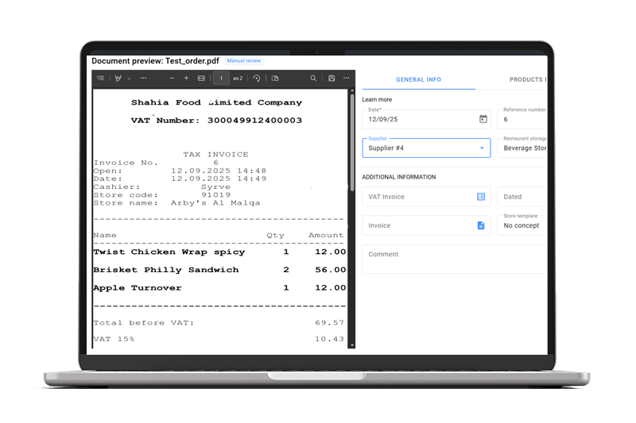
Select Create and the document’s status will again say Pending as the system prepares it for review. When it’s ready, the status will change to Manual Review. You can then select the eye icon next to the file name and open the General Info tab.
When open, the General Info tab displays next to a rendering of the scanned document and allows you to cross-check the fields that have been auto-populated from the scan. These include entries such as date, invoice number, supplier name and invoice amount.
Any information that’s incorrect can be amended here. Should the supplier be incorrect, you can either select an alternative from a drop-down menu or create a new one.
Once you’re satisfied that the information is correct, select Save and the document will be stored in the system and your inventory information automatically updated.
 Mapping Supplier Products
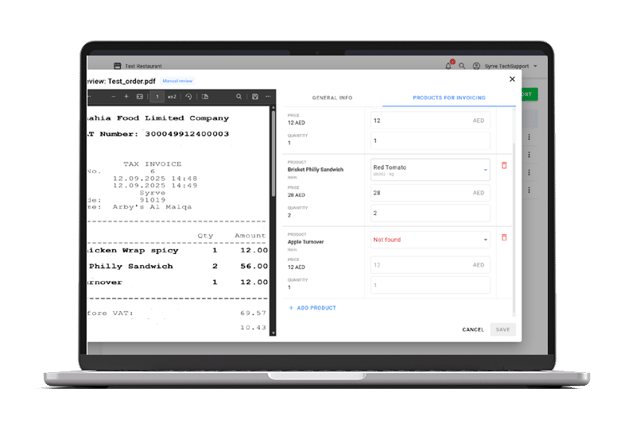
To map supplier products, open the Products for Invoicing tab after you’ve uploaded an invoice. This displays product, price and quantity fields for all products extracted from the invoice. To ensure entries are correct, cross-check each field against the scanned invoice.
In some cases, a product may be marked as Not Found. In this instance, use the dropdown menu to find a related product or create a new one. Unnecessary entries can also be deleted using the trash icon.
Should a product be missing altogether after scanning, select Add Product to add it manually. This may occur when the source document is creased or the product name is not clear.
Creating a Price List
The AI scanner can also generate supplier price lists from uploaded invoices, thereby eliminating the need to manually enter or update pricing information. The created price list can then be used in purchasing workflows and purchase orders.
To create one, upload the invoice as you would in step 1 above. Then open the Products for Invoicing Tab and review the product and prices fields that have been extracted from the document. From here select Create Price List and click Save.
Final Thoughts
At a time when restaurant operators face mounting cost pressures and efficiency is paramount, reducing administrative workloads has never been more important. The AI Document Scanner is a welcome and much-needed addition to the Syrve ecosystem, helping operators to streamline invoice processing, maintain more accurate records and improve inventory management.


.jpg?width=390&height=240&name=7.08_header1(1).jpg)